
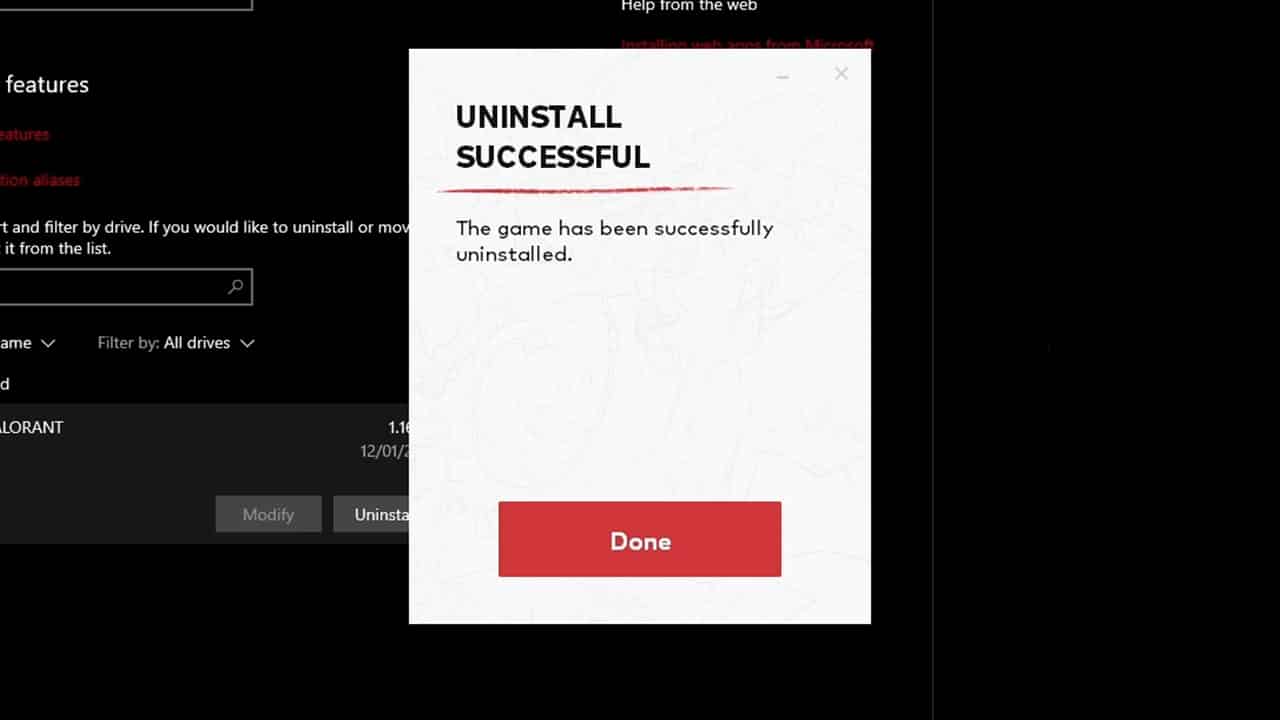
We’ve all had our time with different games, some hold our attention for years, while others just don’t feel right from the start. Whatever the reason for uninstalling a game, it can make a big difference to PCs performance.
In the next 2 minutes you’ll learn how to easily uninstall Valorant correctly and get all that valuable space back on your Hard Drive. The full game usually weighs in between 16-20GB, so it can make a significant difference! But before we get to Valorant, we have to take care of Vanguard.
Uninstalling Vanguard
In order to completely remove Valorant and related files you need to first uninstall Riot’s “custom game security software” or anti-cheat. If not you may encounter a variety of issues when trying to remove the full game from your device.
To remove Vanguard here are a few easy steps:
Step 1 – Close Vanguard through your system tray in the bottom right hand corner of your desktop.

The program may be running in the background but doesn’t appear in your system tray, if that’s the case then go directly to your Task Manager and end the task manually.

Step 2 – Once the program is fully closed you can proceed through the following path to uninstall Vanguard.
Windows Key > Add or Remove Programs > Riot Vanguard > Uninstall > Yes > Yes

How to Manually Delete Riot Vanguard
If you encounter an issue closing the program and uninstalling it, this can be done manually through a Command Prompt, here are the simple steps to do this:
- Press your Windows Key and type CMD
- Right Click Command Prompt and “Run as Administrator”
- Type the following commands:
- ‘sc delete vgc’ and press Enter
- ‘sc delete vgk’ and press Enter
- Reboot your computer
- Navigate to your ‘Program Files’ and find the Riot Vanguard file
- Right-click and Delete

Uninstalling Valorant
Once Vanguard is no-more, we can move on to the full game with the confidence that we will have removed all files and will not encounter any unexpected issues due to the anti-cheat.
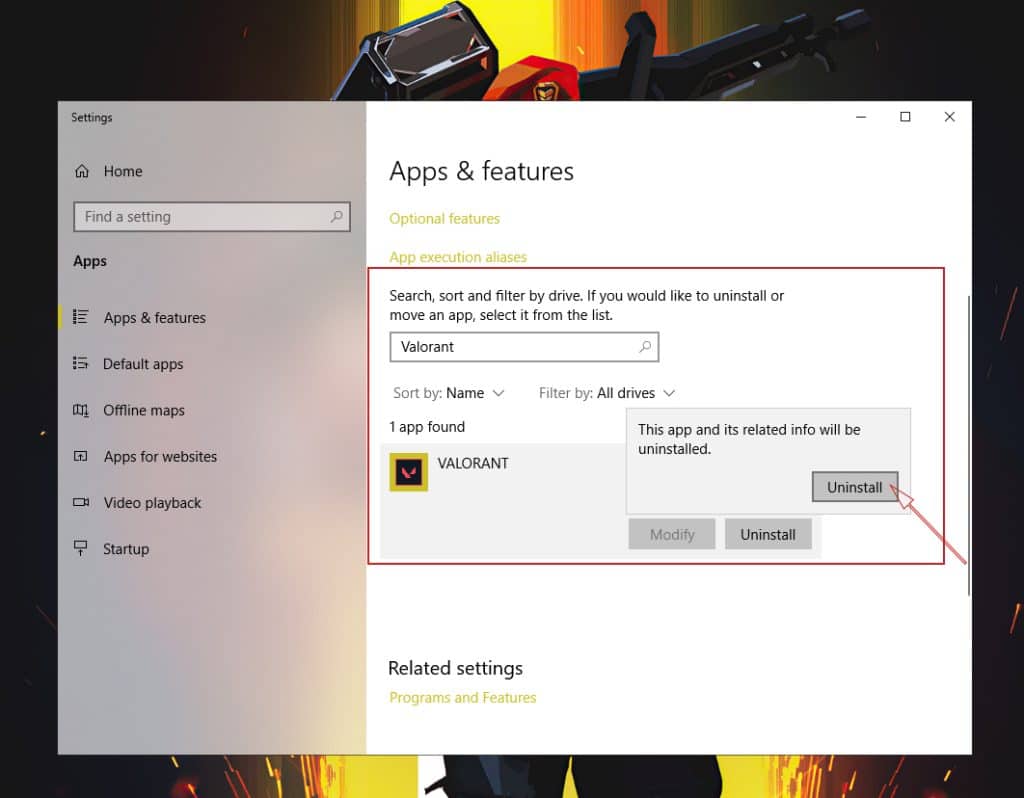
As we did with Vanguard, ensure that the program is fully closed in Task Manager. Once this is done we can proceed with the Uninstall:
Windows Key > Add or Remove Programs > Valorant > Uninstall > Yes > Yes
You’ve now opened up some extra space on your SSD / HDD and rid yourself of both Valorant and Vanguard in the process.
