
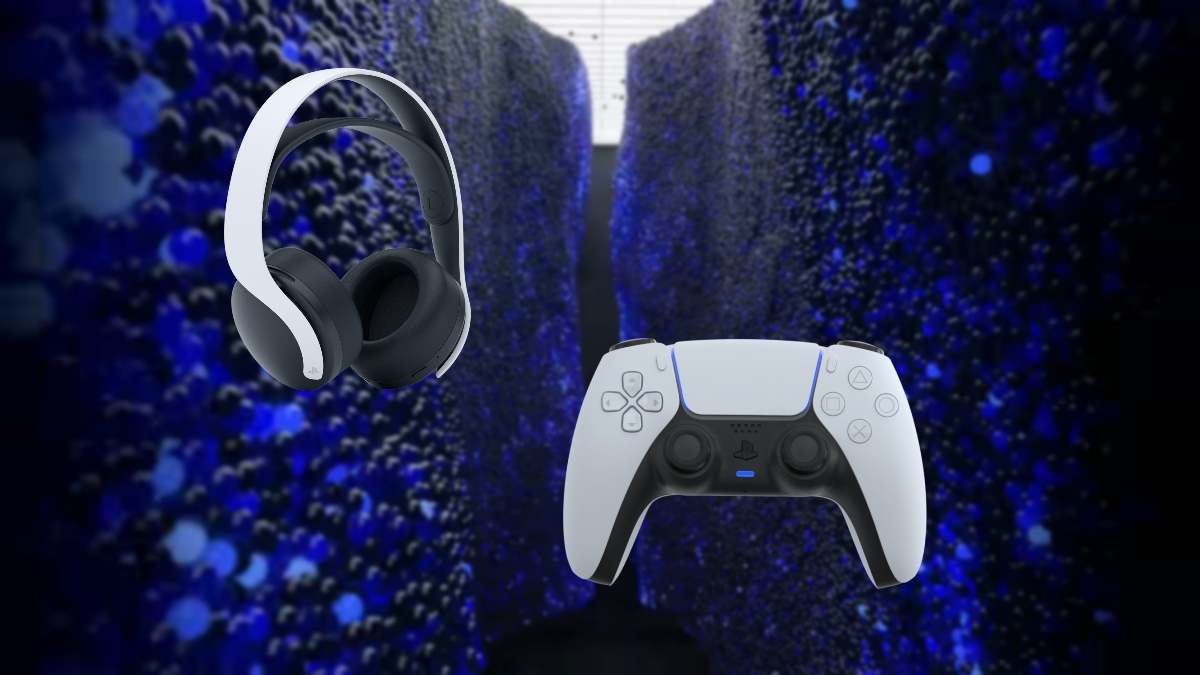
PS5 players who game online while chatting with other players with a mic may occasionally experience echo. This can happen whether you use the mic on the Dualsense controller or another compatible microphone. You don’t experience this only while playing online, but you might also experience this while live streaming and your mic is on.
The most common cause for your mic echoing while playing on a PS5 is your audio output. Your TV or speakers’ volume may be too loud. Your mic picks up the audio from the speakers and it is sending it back to you, thus causing the echo.
It’s also possible that this issue isn’t coming from your end. It’s entirely possible as well that the cause of the echo is another player and because their volume is too loud.
Whether the issue is on your end or someone else’s, the following fixes will resolve the mic echo problem with your PS5.
Wear Headphones

This is one of the best fixes if you constantly experience mic echo while playing on a PS5. Wear headphones while playing to cut out the TV’s audio or the computer’s speakers, which may be the cause of the echo. If you purchased the PS5 with the Pulse 3D Wireless Headset, use that while playing online and chatting with others or while streaming.
This fix isn’t exclusive to the PS5’s official headset. You can use whichever headphones you have. If the headphones you’re using are wireless, you’ll need to make sure that it is compatible with the PS5.
This isn’t a problem if your headphones are wired. You can simply connect the headphones cord to the audio jack on the Dualsense controller.
Do this and you’ll notice a massive difference with the echo. If the problem isn’t coming from your end, figure out which player is the source of the echo. Once you determine who the source is, urge them to use a pair of headphones instead.
Adjust Microphone Level

If you still hear echo even though you’re wearing headphones, your microphone level may be too high. If the microphone level on the PS5 is set too high, it may still pick up audio that bleeds out from the headphones. This can happen to headphones that aren’t noise-canceling, or if the microphones on the headphones are placed close to the earpiece.
You can adjust the microphone level on the PS5 by doing the following steps:
- Press the PS button on the DualSense Controller (the button of a PlayStation logo in between the sticks).
- Press down to head over to the menu icons at the bottom. Then, hover over to “Mic” (the icon of a small microphone).
- Select “Adjust Mic Level.”
- Adjust the slider on this menu. Play around with it as you will until the echo problem is fixed. Make sure the slider maxes around the “Good” range.
Use a Different Mic

This is the final fix you can take if the previous two still don’t resolve the mic echo problem. If you’re using the in-built microphone on the DualSense controller, try using another microphone. Plugging headphones that come with a microphone will automatically change the Input Device to the microphone on the headset.
If your headphones don’t come with a microphone and you’re incapable of getting another that does come with a microphone, make sure where the echo is coming from if you’re playing online. Once again, the issue may not be with you. Talk with your teammates or co-players and ask them if they’re wearing headphones or if their mic level is too high.
