

CS:GO and its Source engine allows for a lot of tinkering and tailoring that you can do to make the most out of your games. One of the things you can take advantage of is a ton of launch options that you can use to improve performance and smoothen the gameplay in CS:GO.
Technically you can use launch options in any game on Steam. But due to the nature of the Source engine, CS:GO has much more commands than other games and you have to take advantage of that.
Best CS:GO Launch Options
The following commands are what we like to call “quality of life” commands. They will make certain parts of the game easier to use and make sure that you can do exactly what you want.
- -novid. This skips the intro CS:GO logo which can take a long time to load
- -console. Launches the game with the developer console enabled by default
- +cl_showfps 1. Shows your in-game fps as a counter at the top of the screen
- -lv. Removes blood from the game which improves visibility and performance
- -tickrate 128. Allows you to host games at 128 tickrate. Note that this will not change the default 64 tickrate on official matchmaking servers. This can be useful when practicing for Face It games that use 1280 tickrate.
- -freq 144. Sets the game’s frequency. Replace 144 with the refresh rate of your monitor
- +exec config.cfg. Will execute a specific CS:GO config file. Use this command if you created a custom config and replace “config.cfg” with the name of your config file.
- -autoconfig. Clear all custom config settings and restore everything to default
- -allow_third_party_software. This command enables third-party software support like OBS so that you can capture your gameplay via Game Capture. It will notify you that you risk reducing your trust factor by using this command when you launch CS:GO, but as long as you don’t use any cheats you will be fine. But make sure that your software is not recognized as cheats. Something like SkinChanger is known for getting people banned.
Launch Options to Increase Performance
These commands are all about increasing your performance and fps in CS:GO. If you struggle with lags and fps drops, try as many commands as you can and test them out. We also recommend using +cl_showfps 1 to monitor your fps changes when testing the commands.
- -high. Sets your CS:GO process priority to high which will increase the game’s performance. You can do that manually through the task manager as well every time you launch the game
- -nojoy. Disables joystick support in the game, which frees up some RAM on your PC
- -threads X. Replace X with the number of logical processors in your CPU. This might increase the game’s performance depending on your processor.
- +cl_forcepreload 1. Forces to load all the textures and resources before the match decreasing the load on your PC
- -softparticlesdefaultoff. Limits the FPS drop whenever a utility explodes or any particles appear on your screen
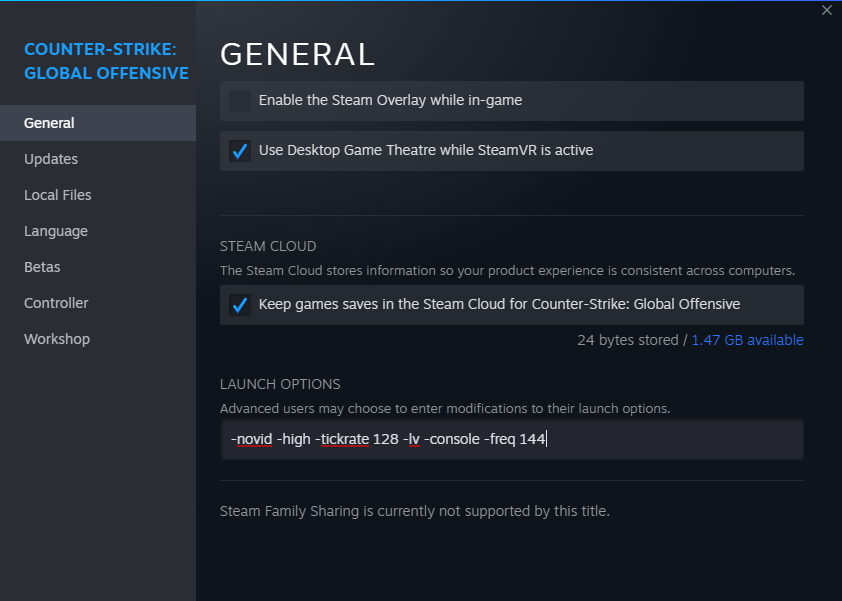
You will likely not need all of the launch options. Go through them and see what you might need especially if you struggle with performance during games. In the end, your launch options could look something like this:
-novid -high -tickrate 128 -lv -console -freq 144
How to Set CS:GO Launch Options
You can set up launch options through Steam very quickly. Note that you can also use some of the launch options for other games. Although many will have their own commands, something like -high will work on practically any game.
To set launch options for CS:GO:
- Launch Steam
- Find CS:GO in your library
- Right-click on the game and select “Properties”
- In the “General” tab find the “Launch Options” box at the bottom
- Enter desired commands
- Close the “Properties” window and launch CS:GO
Use in-game settings and graphs to see if all the commands worked okay. If something didn’t work, make sure you typed it the right way with the right symbols and spaces. Sometimes even a simple space can mess up the command.
