
Racing games like Forza Horizon 5 are best played using a controller no matter whether you are on a console or PC. At the same time, controllers can be a pain to get working on a PC, especially if you use a random controller from your local tech store to play Forza Horizon 5.
There are a few ways to fix your controller not working in Forza Horizon 5 but before that, we highly recommend using an Xbox controller. Most games are optimized to work primarily with Xbox controllers and if you have one, you will experience little to no issues.
Close Unnecessary Apps
The first thing you can do is close all the unnecessary third-party apps. Apps like Logitech G Hub, Razer software, and anything of sorts can interfere with the proper use of your controller.
And no, this is not a joke. Microsoft games can fight with other apps on your PC which will result in bugs and issues. For example, the Overwolf app that we used for Valorant tracking actually stopped Forza Horizon 5 from launching at all. Weird, we know.
Log Out and Restart
Sometimes updates and patches can confuse your PC and the game about your hardware. The best option to check if that’s the case is to restart.
Log out of Forza Horizon 5 in the game itself (you don’t have to log out of all Xbox apps on your PC), restart your PC, and launch the game again.
Update the Xbox Software
Sometimes it is the official software that stands in the way of your controller properly working.
The software in question is the Xbox App and the Xbox Accessories app. If you don’t have the Accessories app, try downloading it and making it recognize your controller. The software is made to configure your Xbox controllers.
To update Xbox apps on PC:
- Open the Microsoft Store app
- Click on “Library” at the bottom left
- Press the “Get Updates” button at the top

Now wait until the updates are downloaded, restart your PC just to be safe, and test the controller in the game. A good thing to try as well as to completely delete Xbox and related apps (make sure to not delete the game in the process) and then reinstall them.
Launch the Game Directly
If you are using the Xbox app to launch the game, try to avoid that and launch straight from the Start Menu on your PC. The Xbox app has a history of messing with your PC’s settings so there is a good chance this will help.
To launch Forza Horizon 5 directly:
- Open the Windows search bar
- Type in “Forza Horizon 5”
- Hit Enter to launch the game
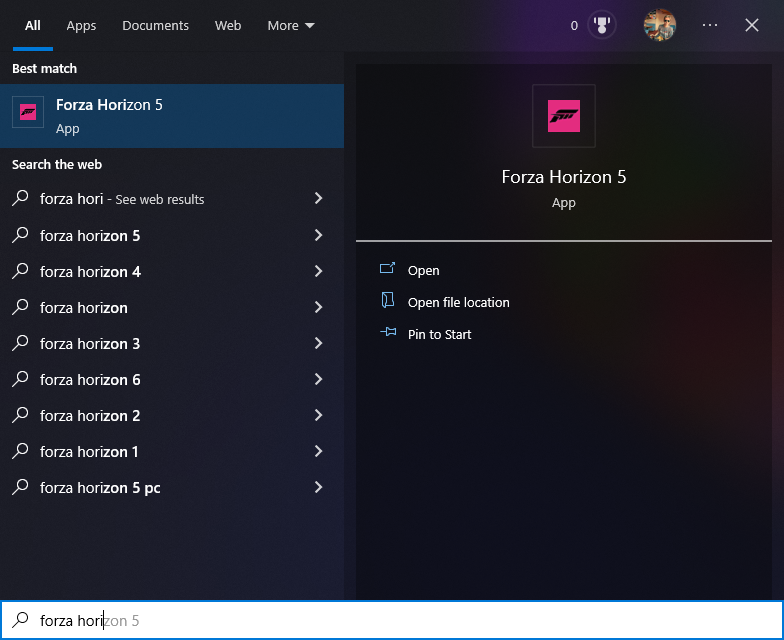
This method will not work if you play the game using Steam as following the steps will launch Steam along with the game.
Try Different Connections
Depending on what controller you are using, you might be connecting using a USB cable or Bluetooth.
If you are connecting your controller via Bluetooth, try plugging it into the USB port using a cable to play the game. If that helps there is a chance it is something with your Bluetooth connection on either controller or PC. Try unpairing the controller and pairing it again or updating Windows and Bluetooth drivers to fix that.
For USB users, try to plug the controller into a different port. Some USB ports might have different uses depending on your PC even though they all look the same. In our case, we had a USB port that could only be used for charging up the device.
Disable/Enable Steam Controller Override
For each game on Steam, you can configure which controllers will be recognized by the game. There is a whole lot of them starting with the generic off-brand controllers to Switch and Steam controllers. Try playing the game with the override enabled and disabled and see if that works for you.
To enable/disable controller override in Steam:
- Launch Steam
- Find Forza Horizon 5 in your library
- Right-click on the game and select “Properties”
- Go to the “Controller” tab
- Switch the “Override for Forza Horizon 5” to enabled or disabled
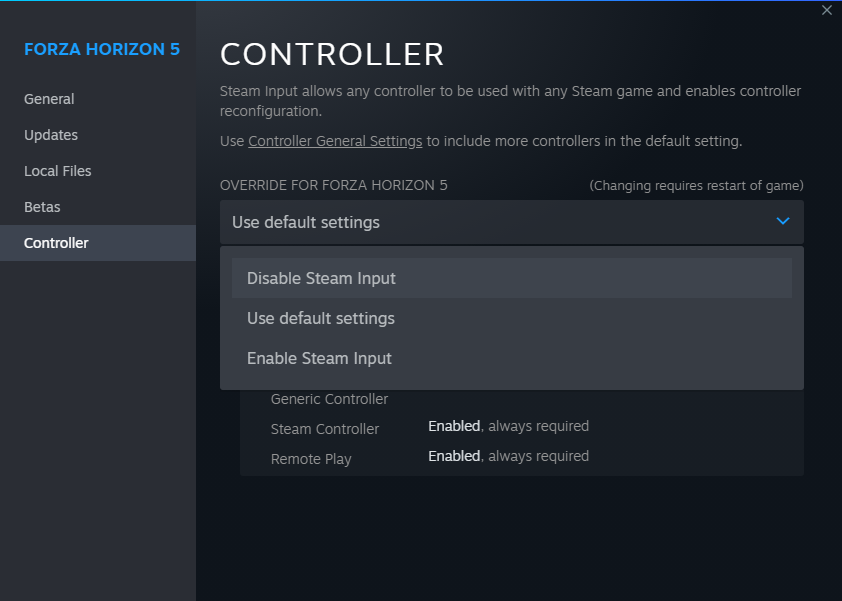
If nothing helped, go to the “Controller General Settings” above the override, and in the opened window enable the support for the type of controller that you have. Then launch the game to test it out.

Download DS4 (for PS4/PS5 controllers)
PlayStation controllers can have a rough time working with PC games. For the best experience, you should download DS4Windows. It’s an emulator that is made for PS4 and PS5 controllers to appear as Xbox controllers. Install it and set your controller up.
Once you have it installed and set up launch the game. While in Forza Horizon 5, head to the settings of the DS4Windows and disable/enable the “Hide the DS4 Controller”. Try turning it off, waiting a few seconds, turning it on, the other way around, and see if that helps.

Reinstall Xbox 360 Controller Emulator
For any incompatible controllers, you will likely be using the x360ce software which emulates your Chinese controller as an Xbox 360 controller. Try reinstalling the software and ensuring it is configured properly.
Contact Forza Support
If none of the methods helped, the last thing we can recommend you to do is reach out to Forza Support. With third-party controllers and software, it is easy for things to go wrong when trying to use them. There even might be a chance that the controller won’t work at all.
