

For a perfect lap, you need to master the controls of your car. And although Forza Horizon 5 is an arcade game it can be easily turned into a racing simulator where you need to focus on controls even more. We will list all the controls in Forza Horizon 5 and how they work.
You can find Forza Horizon 5 controls the following way:
- Launch Forza Horizon 5
- Select “Options”
- Select “Controls”
- Press on “Change Input Mapping”
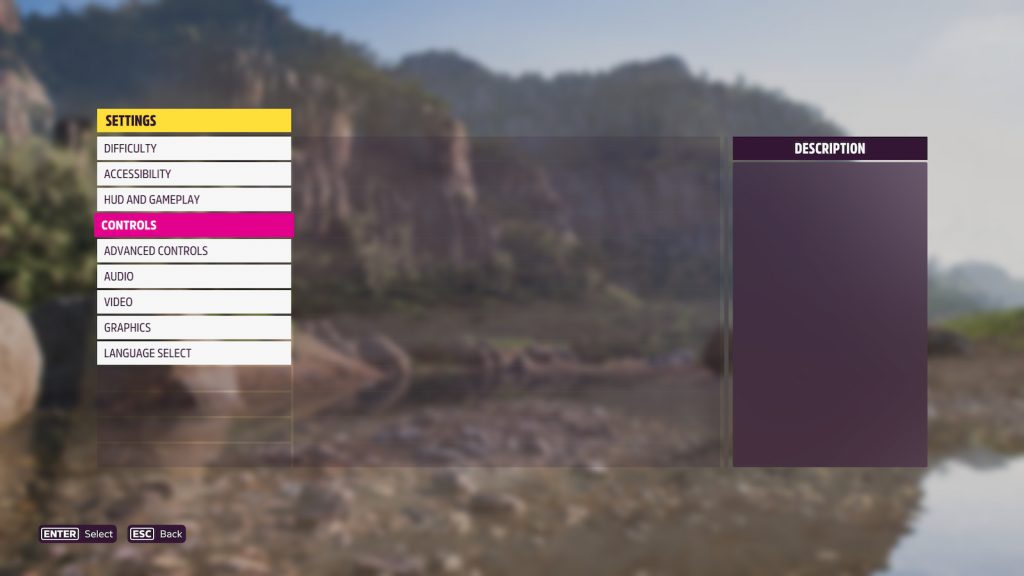
There you can switch between the controller and keyboard layouts by switching tabs on the top. Each control type also comes with a couple of presets. In this guide we have set the default presets for both controller and the keyboard.
Forza Horizon 5 Xbox/Controller Controls
Unlike many games, Forza Horizon 5 allows you to remap controller buttons instead of using a predefined preset. Still, you have to know what to change and to what. These are the controller controls for Forza Horizon 5:
| Accelerate | RT |
| Brake/Reverse (Hold) | LT |
| Steer Left | LS Left |
| Steer Right | LS Right |
| E-Brake | A Button |
| Shift Up | B Button |
| Shift Down | n/a |
| Clutch | LB |
| Rewind | Y Button |
| Switch Camera | RB |
| Toggle Convertible | n/a |
| Look Left | RS Left |
| Look Right | RS Right |
| Look Back | RS Down |
| Look Forward | RS Up |
| Telemetry | n/a |
| Telemetry Previous | n/a |
| Telemetry Next | n/a |
| Activate | X Button |
| Map | View Button |
| Horn | RS Button |
| Toggle Mini Leaderboard | n/a |
| Photo Mode | D-Pad Up |
| Radio Previous | n/a |
| Radio Next | D-Pad Right |
| Activate Anna | D-Pad Down |
| Forza Link | D-Pad Left |
| Anna / Forza Link – Option 1 | D-Pad Up |
| Anna / Forza Link – Option 2 | D-Pad Left |
| Anna / Forza Link – Option 3 | D-Pad Right |
| Anna / Forza Link – Option 4 | D-Pad Down |
Some of the controls do not have any buttons assigned simply because there aren’t that many buttons on the controller. But those controls will change automatically whenever you change the shifting mode, drive in the convertible, and so on.
So don’t worry about changing keybinds whenever you switch to manual but make sure to take a look in the settings in case they’ve changed.
Forza Horizon 5 PC Controls
Although we would highly recommend that you use a controller for this game, it is still quite playable on the keyboard. The upside is that on the keyboard you have access to dozens of keys and can assign all of the controls straight away:
| Accelerate | W |
| Brake/Reverse (Hold) | S |
| Steer Left | A |
| Steer Right | D |
| E-Brake | Space |
| Shift Up | E |
| Shift Down | Q |
| Clutch | Shift |
| Rewind | R |
| Switch Camera | Tab |
| Toggle Convertible | G |
| Look Left | Left |
| Look Right | Right |
| Look Back | Down |
| Look Forward | Up |
| Telemetry | T |
| Telemetry Previous | PGDown |
| Telemetry Next | PGUp |
| Activate | Enter |
| Map | M |
| Horn | H |
| Toggle Mini Leaderboard | L |
| Photo Mode | P |
| Radio Previous | – |
| Radio Next | = |
| Activate Anna | C |
| Forza Link | V |
| Anna / Forza Link – Option 1 | 1 |
| Anna / Forza Link – Option 2 | 2 |
| Anna / Forza Link – Option 3 | 3 |
| Anna / Forza Link – Option 4 | 4 |
Overall it is a decent preset to start playing on the keyboard. Especially if you are new to racing games. Depending on your driving style we would swap the Brake and E-Brake keybinds for more control.
Advanced Controls
Apart from regular controls, you can also set up advanced controls in the game’s settings. Advanced controls are more made for controller players as they allow you to fine-tune the deadzones of steering, acceleration, e-braking, and clutching.
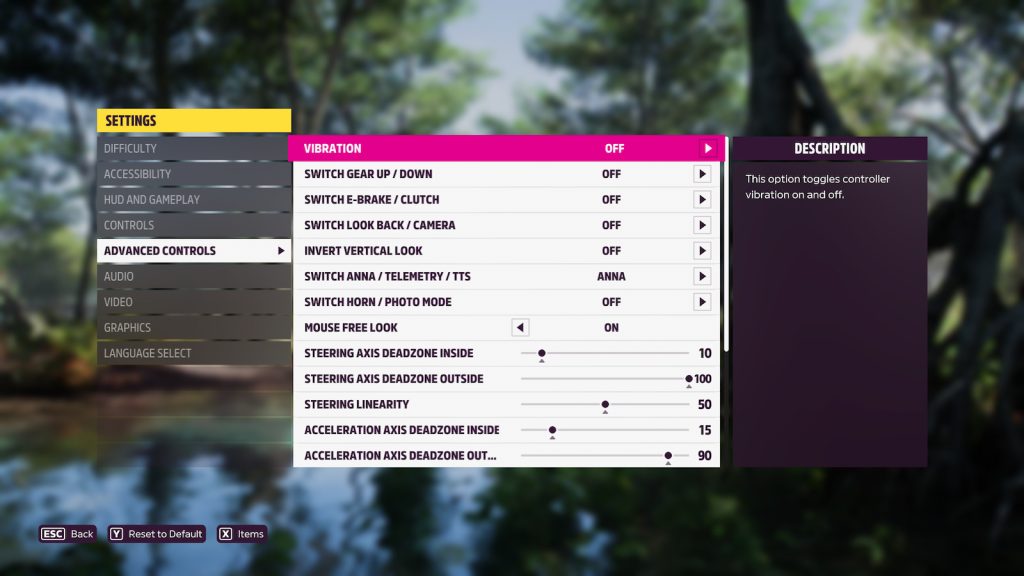
In advanced controls, you can also swap controls between the specific two. For example, the “Switch Gear Up / Down” will swap the binds for the two. But to be completely honest, it is much easier just to change control mappings manually.
