
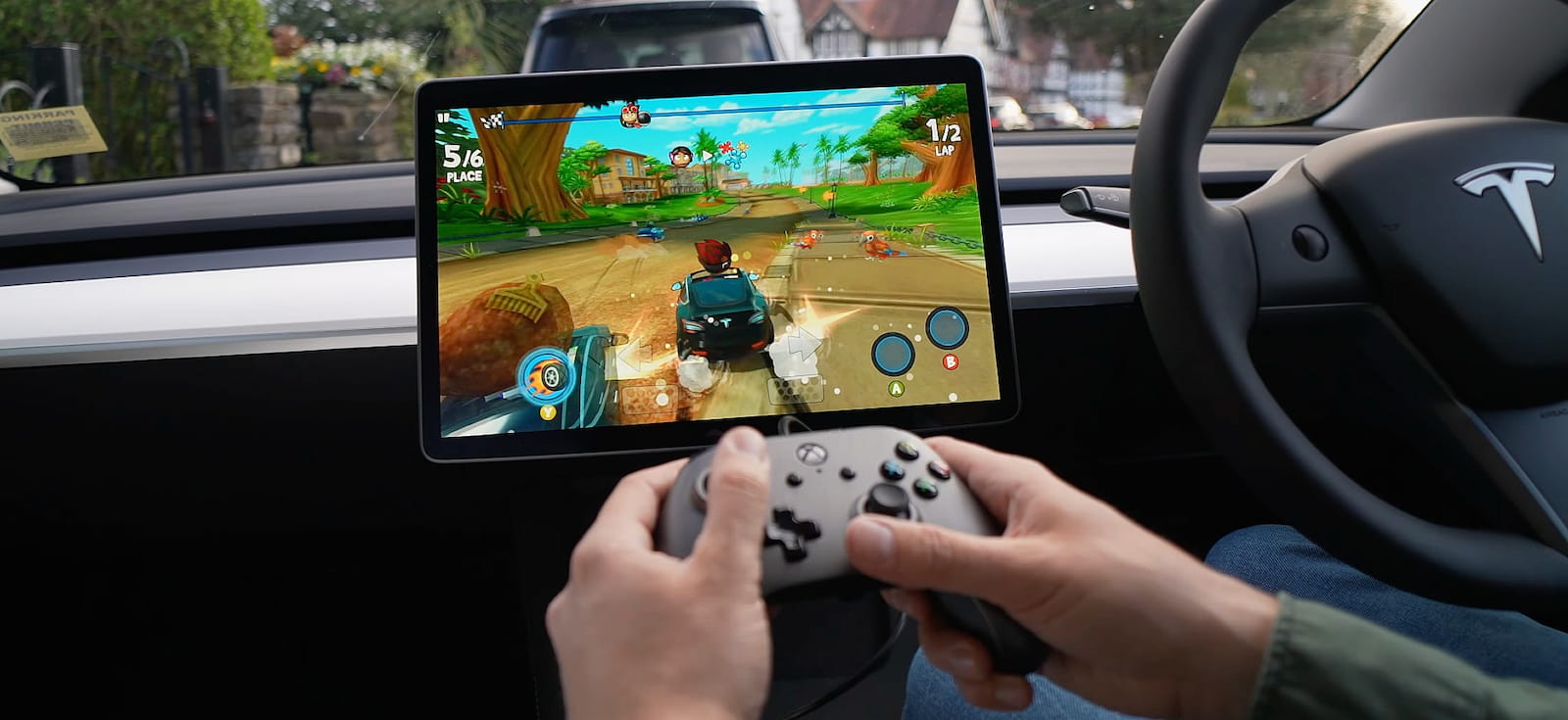
How about being able to play your Xbox inside a Tesla? Talk about fun on the go! Gaming on your Tesla Model 3/Y is very much possible, but first, you need to know how to connect an Xbox controller to a Tesla car whether your controller is wireless or wired.
How To Connect a Wireless Xbox Controller to a Tesla Car
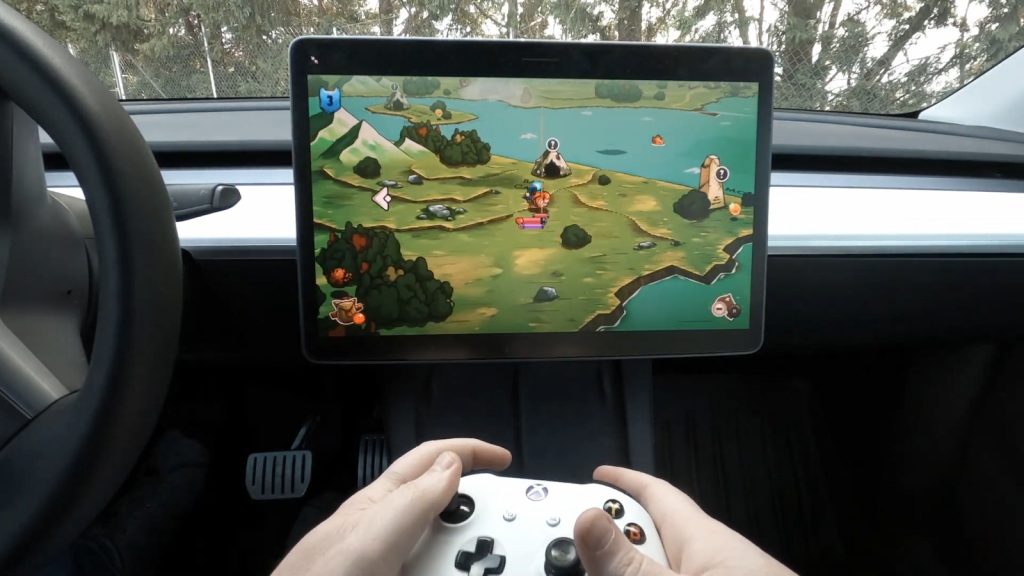
You need to be familiar with the Xbox controller models that a Tesla Model 3 supports for a wireless connection. The following are the Xbox controllers supported by Tesla to be connected to the car:
- Xbox 360 controller
- Xbox One controller
- Xbox Elite Series controller
- Xbox Series X|S controller
You will also need:
- Tesla Model 3
- A wireless controller adapter
Purchase a Wireless Adapter
You need a wireless Bluetooth adapter to pair your wireless Xbox controller to your Tesla Model 3. A couple of popular options for Bluetooth dongles that you can use in this case include the Magic NS 2 by MAYFLASH and the Wireless USB Adapter 2 by 8Bitdo.
Plug the Wireless Adapter and Trigger Pairing Mode
Once you get your hands on a wireless USB adapter, it’s time to plug it into your Tesla. You can do this via the USB ports inside the car.
- Plug the controller into the USB port. You’ll find the USB port in the center console on Tesla Model 3 versions released before November 2021. Newer Tesla versions feature the USB port inside the glove box compartment.
- Now that you’ve plugged the wireless USB adapter into your Tesla, you need to put it into pairing mode by pressing or holding the pairing button. The location of the pairing button varies across the different brands of wireless USB adapters.
Don’t plug the adapter into the USB ports at the back of your Tesla. These ports don’t provide data, instead, they only deliver power for charging.
Trigger Pairing Mode in Your Controller and Connect
The final step is to put your Xbox controller in pairing mode so it can connect to the wireless USB adapter.
To trigger pairing mode in your Xbox controller:
- Press and hold the Xbox button for a second to switch on the controller
- Press and hold the pairing button found at the back of the controller. Hold it for about 3 seconds and you should see the Xbox button start blinking to indicate that the controller has entered the pairing mode
With both devices in pairing mode, the wireless USB adapter and the Xbox controller will detect each other and pair. Once the pairing is complete, any blinking of the lights on the devices should stop.
Your Xbox controller is now connected wirelessly to your Tesla. A notification on your car’s screen will confirm this.
How To Connect a Wired Xbox Controller to a Tesla Car

Similar to the previous section, you should know which Xbox controller models are compatible with Tesla Model 3 for a wired connection.
If your Xbox controller is one of the models listed below, you can move on to the following steps to establish a wired connection:
- Xbox One controller
- Xbox Elite Series controller
- Xbox Series X|S controller
You will also need:
- Tesla Model 3
- A USB cable and/or a USB hub
Choose a USB Port
To establish a wired connection between your Xbox controller and a Tesla, you should find a suitable USB port in the car.
You’ll find the USB port in the center console on Tesla Model 3 versions released before November 2021. Newer Tesla versions feature the USB port inside the glove box compartment.
Some center console ports in older Model 3 versions may support charging only. In this case, simply opt for the one in the glove box. The same goes for the USB ports at the back of your Tesla. These ports don’t provide data, instead, they only deliver power for charging
If your Xbox controller is incompatible with the type of USB port in your Tesla, just buy a suitable dongle, plug the dongle into your Tesla USB port, and then plug the controller’s USB cable into the dongle.
Plug in the Controller via USB Cable
With the USB port in the Tesla ready, simply plug the USB cable into the Xbox controller and the port. You’re now ready to start playing!
Note that you can connect multiple wired Xbox controllers to your Tesla using a USB hub.
What Other Controller Can Connect to Tesla?
In addition to Xbox controllers, Tesla 3 also supports the following controllers:
- PS3 controllers
- PS4 controllers
- PS5 controllers
- Wii U controllers
- Logitech F310 wired controller
- Logitech Gamepad F710
- Switch Joy-cons
- Switch Pro Controllers
What If the Wireless Xbox Controller Gets Disconnected?
You can pair your Xbox controller to your Tesla 3 via a wireless or wired connection as long as you have a compatible controller and adapter.
If your wireless Xbox controller disconnects from the Tesla, you can reconnect them by simply unplugging and replugging the wireless USB adapter. The two devices should then reconnect within a few seconds.
However, if the disconnection issue keeps happening, then the issue may be an outdated firmware version on the adapter. An update should fix the issue in this case.
