

No matter how much you play, nothing will compare to the moment when you first launch the game. Although a bit complicated depending on the platform, you can restart your game in Forza Horizon 5 by deleting cloud saves and experience a fresh start once more.
How to Reset Forza Horizon 5 on Xbox
If you are playing Forza Horizon 5 on Xbox, the process is quite easy for you. First of all, make sure that your console is connected to the internet, and follow the steps below to restart the game:
- Press the Xbox button
- Go to “My games & apps”
- Select Forza Horizon 5 from the list of games and press the options button on your controller
- Go to “Manage game and add-ons”
- Select “Saved Data”
- Find your profile and delete the save from everywhere
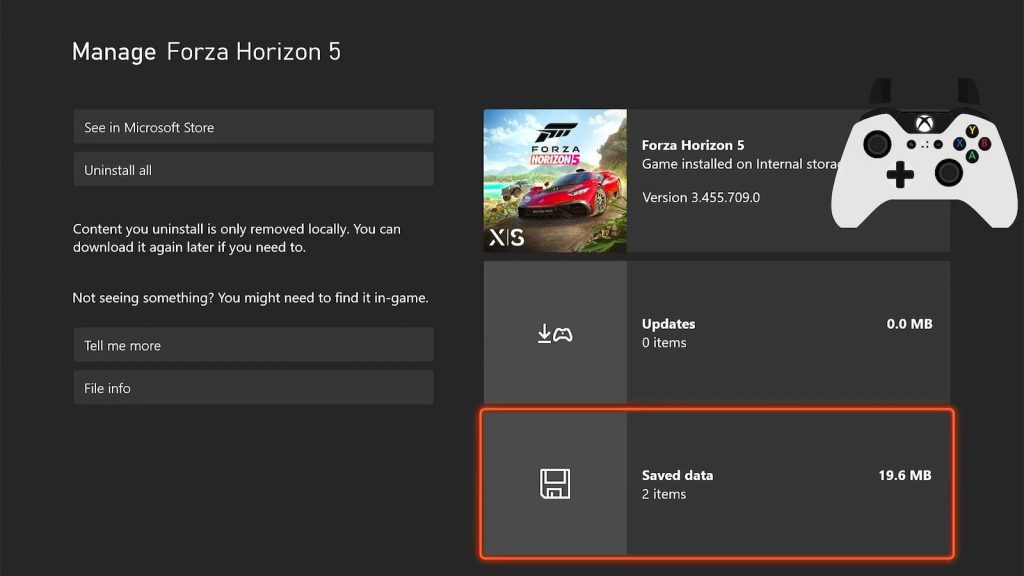
This will ensure that your save is removed on your local console as well as on the cloud so you can start fresh with the next launch of the game. If you chose to delete the save on the console only, you can only start a new game while offline and then upload your save to the cloud. But that’s one more step than you need.
How to Reset Forza Horizon 5 on PC
On PC things are a bit more complicated. The method varies depending on whether you play through Microsoft Store / Xbox App or Steam. This section talks about Microsoft Store, for Steam scroll down to the next.
Before you begin, make sure that PC Offline Permissions are enabled in the Microsoft Store:
- Launch Microsoft Store
- Click on your profile picture at the top and go to “Settings”
- Enable “Offline Permissions”

Note that you can change this setting a total of 3 times every 365 days. So be extra careful when choosing a PC to do this on. We recommend using the main setup for this that you will game on most of the time.
After that, follow these steps to restart Forza Horizon 5 on PC (by Forza Support):
- Disconnect your PC from the internet.
- Go to Windows 10 settings -> Storage -> Apps & games ->Forza Horizon 5 ->Advanced Options ->Press the “Reset” button
- Launch the game and play until you choose a car and a license plate
- Close the game
- Connect back to the internet
Next time you play the game will ask you to choose a save to continue playing. Make sure to choose the local save to upload it to the cloud. After that, your new progress will be safely stored on the official servers.
How to Reset Forza Horizon 5 on Steam
On Steam, you will have to remove the files from the Steam Cloud and on your PC. But before you can delete your save files, you have to disable the Cloud Sync in Steam:
- Launch Steam
- In the top left press “Steam”
- Go to “Settings”
- Go to the “Cloud” and untick all boxes

Now, none of your games will sync to the Steam Cloud. Once you’ve done that, follow these steps to restart Forza Horizon 5 on Steam:
- Close Steam
- Go to C:\Program Files (x86)\Steam\userdata and select a folder of your Steam ID. There will usually be just one folder but if there is more, you can find out your Steam ID by finding your Trade URL. In the URL there will be a set of numbers after partner=. That’s what you are looking for.
- In that folder, you need to find a folder named 1551360 which is the game’s ID
- Delete everything
- Disconnect your PC from the internet
- Launch the game and play until you choose the first car and a license plate

With the new save created, you can now close the game and connect back to the internet. Remember to re-enable the Cloud Sync in Steam and the next time you launch the game Steam will prompt you to choose a cloud save or a local save. Select your local save and Steam will upload it to the cloud.
