
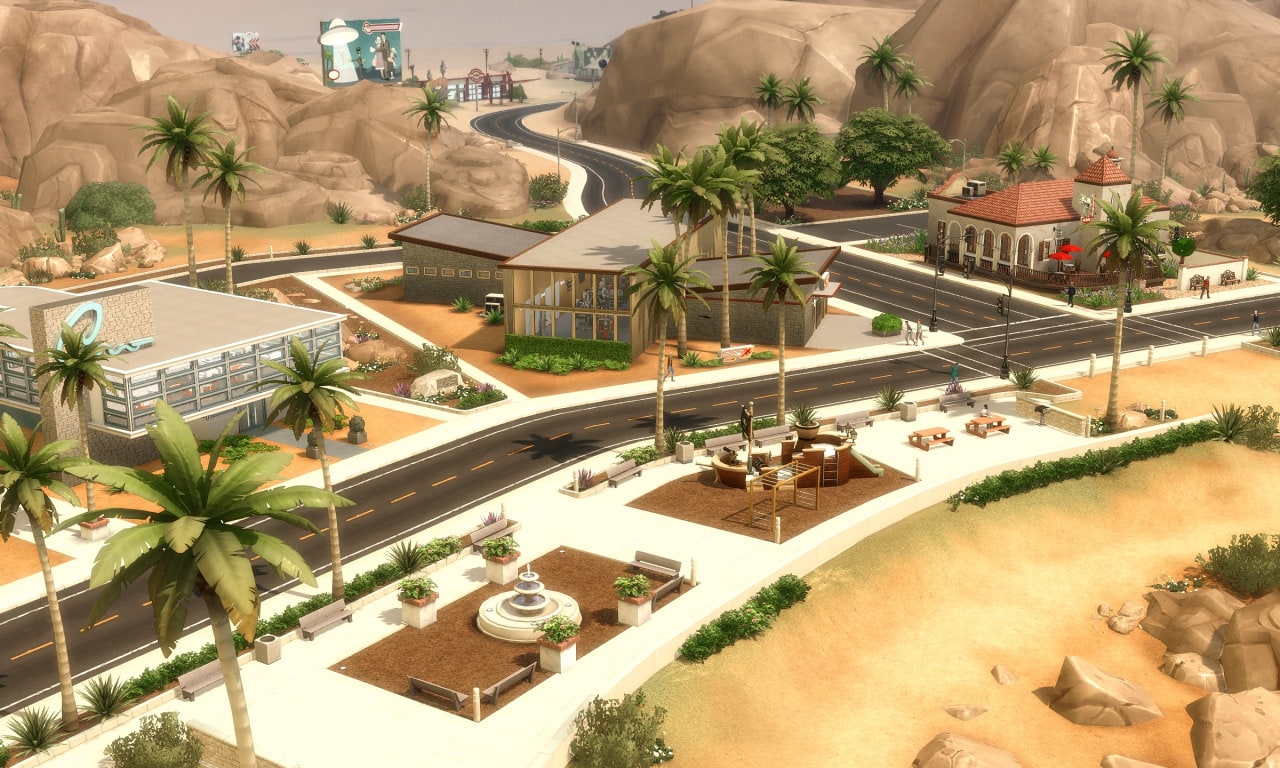
If you’re new to mods, it’s easy to get over-excited and download everything that is available to you. The Reshade mod is an add-on that’s used in a variety of games outside The Sims 4, but it has a habit of eating up a lot of PC space. If you feel like now is the time to clean the house, then follow this simple guide on how to uninstall reshade for The Sims 4.
What is Reshade?
Reshade is a straightforward, customizable plugin that supports the addition of certain graphical effects, such as color correction and ambient lighting. The mod can be downloaded here.
The mod allows you to alter various graphical elements to trick your brain into thinking that your Sim’s environment is closer to reality than you think.
Increasing ambient lighting can bring a sense of realism to the way the sun glows and casts off of objects outside, as well as how lights interact inside your home.
A downside to Reshade is how much stress it puts on your CPU, which will affect your PC’s overall performance.
The mod can be used on most PC games to raise your gameplay experience to another level, however, it can be a little baffling to uninstall.

How to uninstall Reshade in The Sims 4
Installing mods and keeping track of the different folders and file extensions can be hard to get your head around at first. Therefore, uninstalling it may seem like an even bigger chore.
However, help is at hand to guide you through the process, and the first step is to locate your game’s files.
Head to the game’s directory where it was installed – it should be in your Steam folder.
Next, you’ll need to delete the folder ‘Reshade-shaders’, followed by all of the .ini files and .dxgi files.
Here is a list of all the files you should delete:
- d3d8.dll
- d3d8.ini
- d3d9.dll
- d3d9.ini
- d3d10.dll
- d3d10.ini
- d3d11.dll
- d3d11.ini
- dxgi.dll
- dxgi.ini
- d3d9.log
If you’re looking for something a little less time-consuming, then the option to delete the entire game’s folder is there. Be warned that this puts all of your hard work at risk.
If you are struggling to locate any of the files, follow these instructions:
- Simply run your game, press CTRL+SHIFT+ESCAPE to open the Task Manager.
- Navigate to the Processes or Details tab to find the game’s .exe files.
- Finally, click on the game’s .exe file and click ‘Open File Location.’ There you will find all the necessary files you will need to delete.
Once all of the folders and files have been deleted, your game will be completely Reshade free.
Once the mod is uninstalled, you may be keen to learn some of the game’s cheats, and this guide has you covered.
