

Overwatch 2 has a spectating feature that will allow you to watch the match rather than play it. Since the feature is quite limited, we will explain everything about how you can spectate other players in Overwatch 2.
Spectating in Overwatch 2 is available only to spectate your friends playing or spectate a custom game you have been invited to. You can’t just connect to a random game and start watching.
How to Spectate a Friend
If your friend is currently playing a game you can spectate them by navigating to your friend’s list, right-clicking on your friend, and selecting “Spectate”. You will then load up to their match and be able to observe what is going on.
Note that you can’t spectate a friend that plays Competitive for fair play reasons. In that case, you will just have to wait until they are done.
How to Spectate in a Custom Game
When creating a Custom Game there are dedicated slots for spectators. Those are useful if you are hosting your own tournament to act as an observer or just have fun looking at your friends trying to 1v1 each other.
To create a Custom Game head to the “Play” menu, select “Custom Games”, and click on the orange “Create” button in the top-right corner.
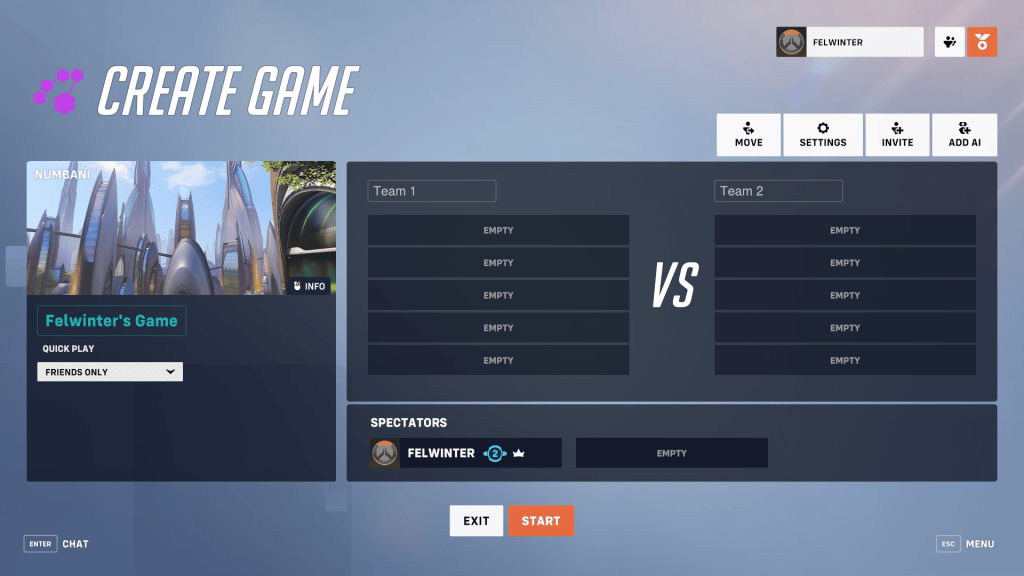
Here you can set up all the settings you need and arrange players between teams and spectators. Simply click on the “Move” button at the top, then select the player you want to move and an empty spectator slot. The controls are a bit unintuitive that’s true, but you’ll get the hang of it.
Spectator Controls
As a spectator, you have a range of controls that will make the most out of your watching experience. If you head to the “Controls” tab in your settings, you will find a section for spectating. There are tons of features and keybinds but we will list the most useful ones.
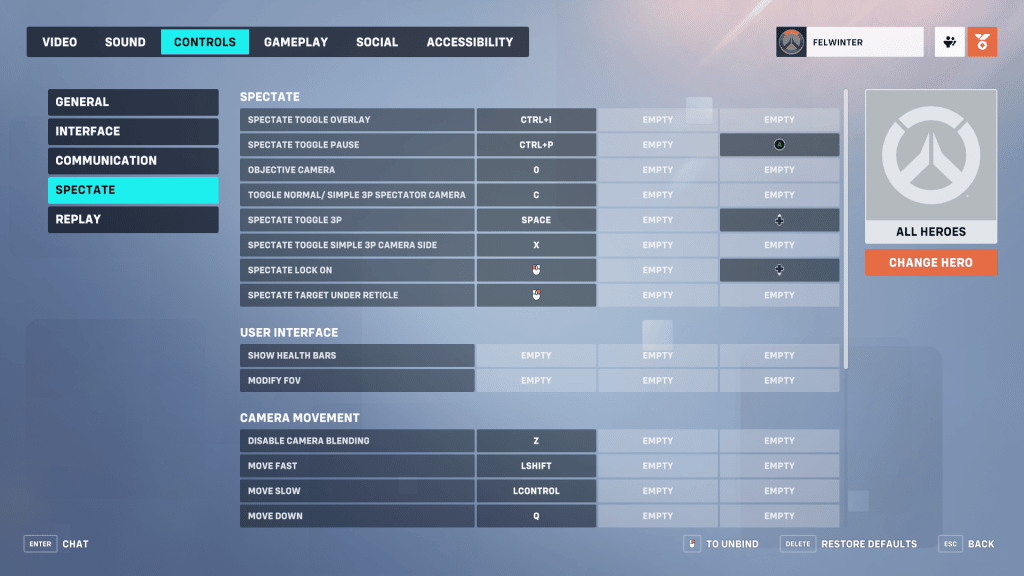
Controls “Spectate Previous“, “Spectate Next“, and “Spectate Player 1-10” are all great to watch the whole game rather than your friend alone. Some of these controls are unbinded by default, so make sure to check them before spectating.
Other useful settings are “Spectate Lock On” and all of the “Camera Movement” controls so that you can freely move around the battlefield and choose the angles you want to watch yourself.
If you are setting up your keybinds and controls we also recommend you set the best Overwatch 2 settings for performance as there are a few of them that aren’t necessary and tweaking them will significantly improve your gaming experience.
